Your data. Your spreadsheet.
Your dashboard.
Power Users can load their own Excel workbooks directly into VisualDashboard and have them available as live dashboard data sources — without involving a DBA, a developer, or raising an IT ticket. The entire process is handled through the browser.
From spreadsheet
to dashboard in three steps.
The Data Loads feature gives Power Users a structured, safe way to bring their own data into VisualDashboard. Structural fingerprinting prevents mismatched reimports. Schema review gives administrators oversight before anything is committed.
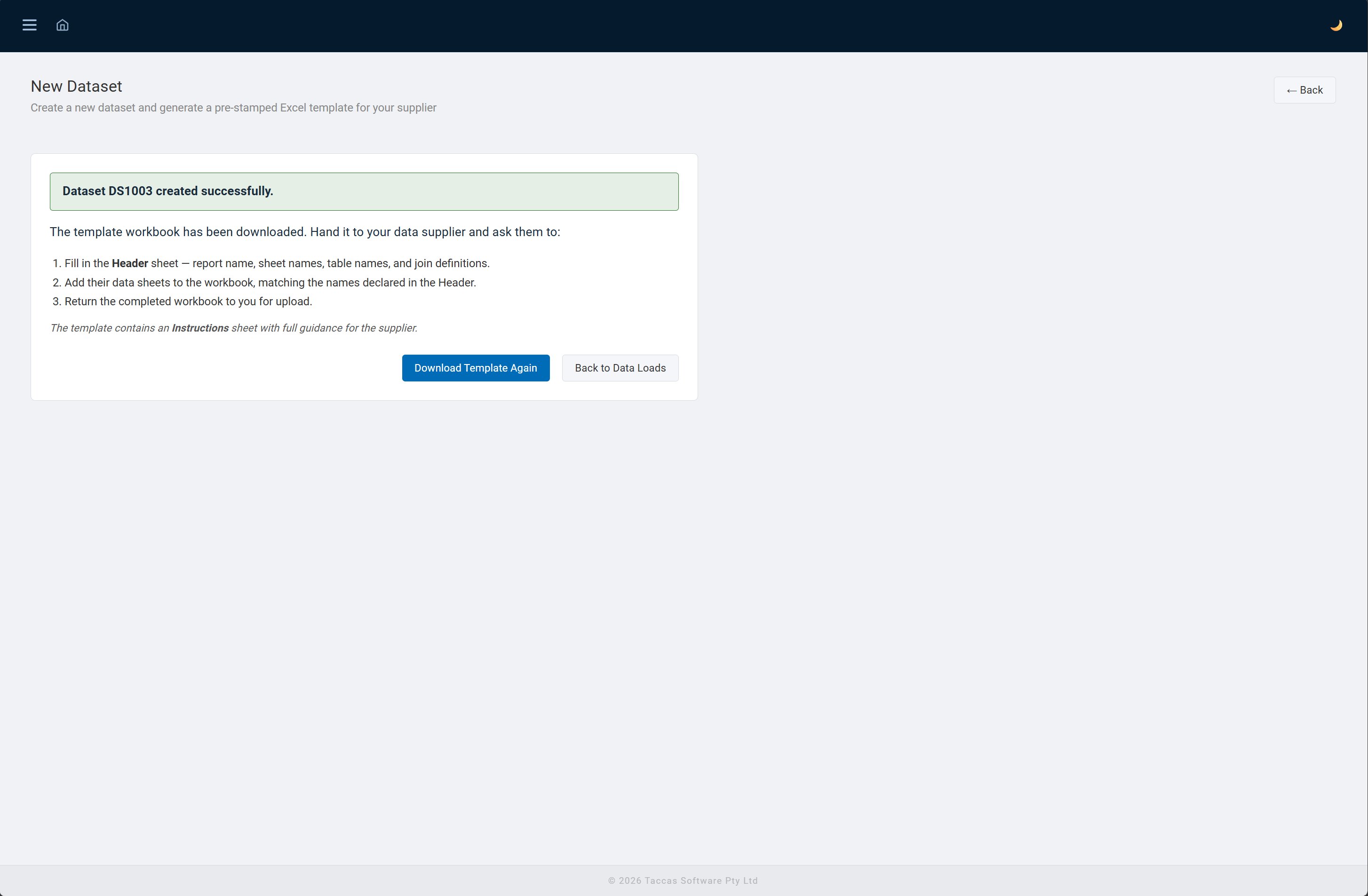
Create a dataset and download the template
Give the dataset a name and click Create & Download Template. VisualDashboard generates a pre-stamped Excel workbook with a unique Dataset ID embedded in the Header sheet. This ID acts as a structural fingerprint — if the wrong workbook is uploaded later, it will be rejected.
Fill in the template and upload it
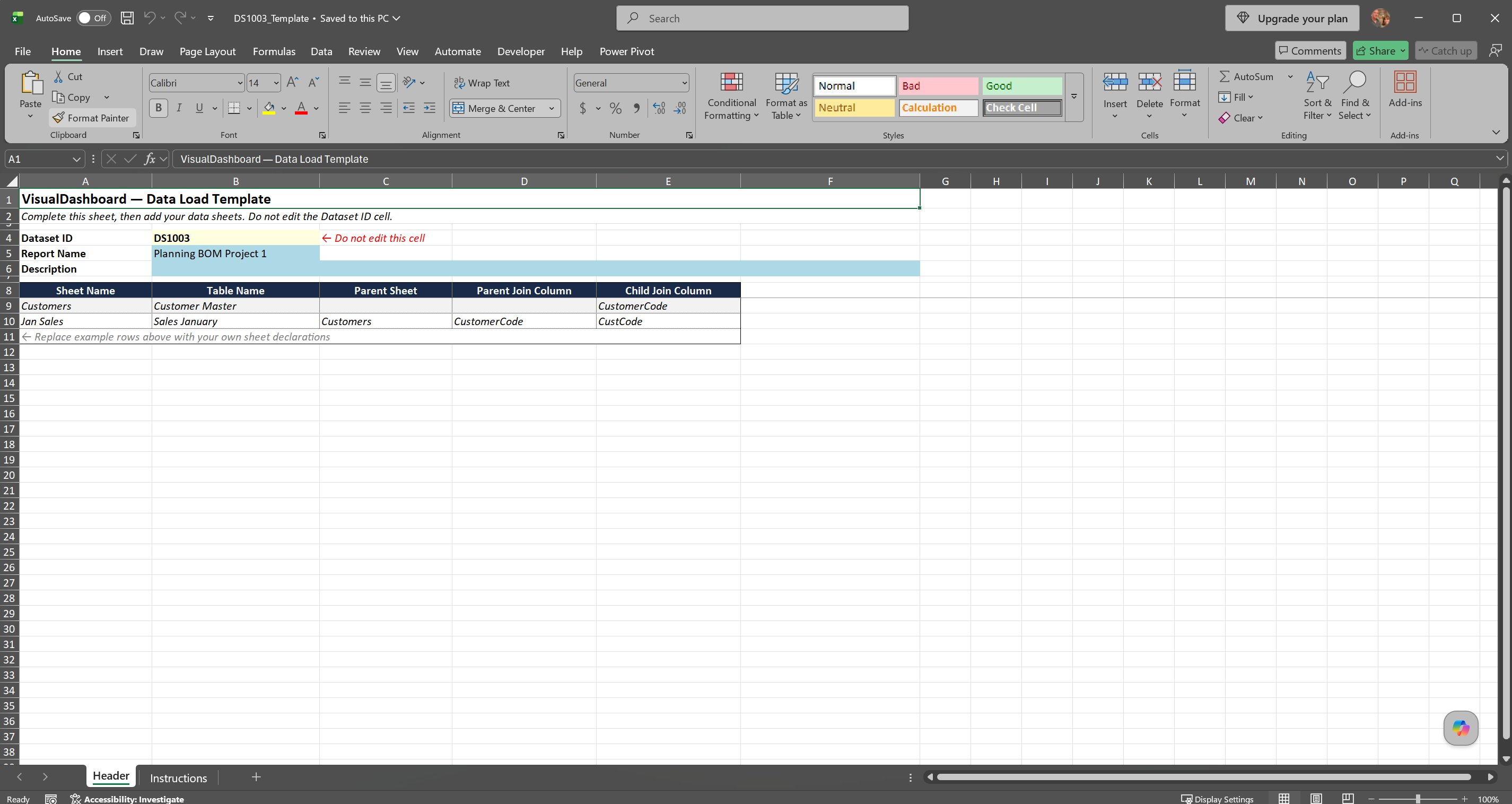
Fill in the Header sheet to declare your data structure — sheet names, table names, and join definitions for parent/child relationships. Add your data sheets to the workbook with the declared names, then upload the completed file. Multi-sheet workbooks are fully supported for hierarchical data.
Review the structure and activate
Administrators review the column types inferred from the uploaded data before committing the load. Once activated, the dataset is immediately available as a data source for dashboard template configuration. A linked data source is created automatically — no manual setup required.
A structured workbook
that guides the user.
The downloaded template is a standard Excel workbook with two sheets: a Header sheet where the data structure is declared, and an Instructions sheet with full guidance. The Dataset ID cell is locked — it cannot be edited, ensuring the fingerprint is always intact.
- Header sheet — declare sheet names, table names, and join columns
- Dataset ID pre-stamped and locked — prevents mismatched reimports
- Instructions sheet — full step-by-step guidance included in the workbook
- Multi-sheet support — one sheet per table, parent/child joins declared in Header
- Standard .xlsx format — no macros, no special software required
- Any data that fits in Excel can be loaded into VisualDashboard
Full lifecycle
management.
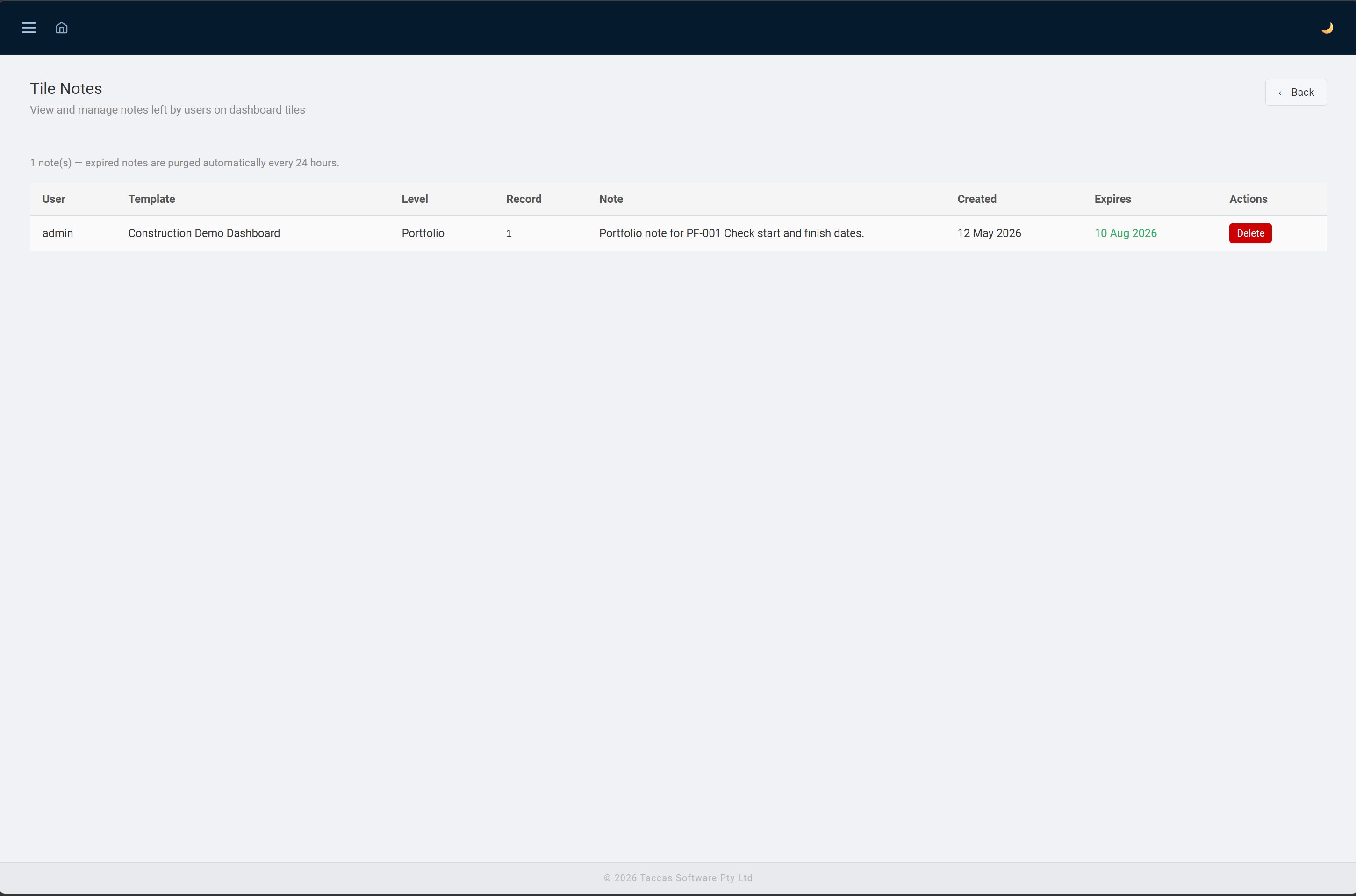
The Data Loads page shows all datasets with their current status, when the template was issued, when data was last uploaded, and when it was last processed. Each dataset can be re-uploaded with a fresh version of the data at any time — the fingerprint ensures only the correct workbook is accepted.
- Status — Active datasets are immediately available as data sources
- Template — re-download the stamped template at any time
- Upload — replace the dataset with a fresh Excel workbook
- Structure — review the inferred column types and schema
- Delete — removes the data tables and configuration in one operation
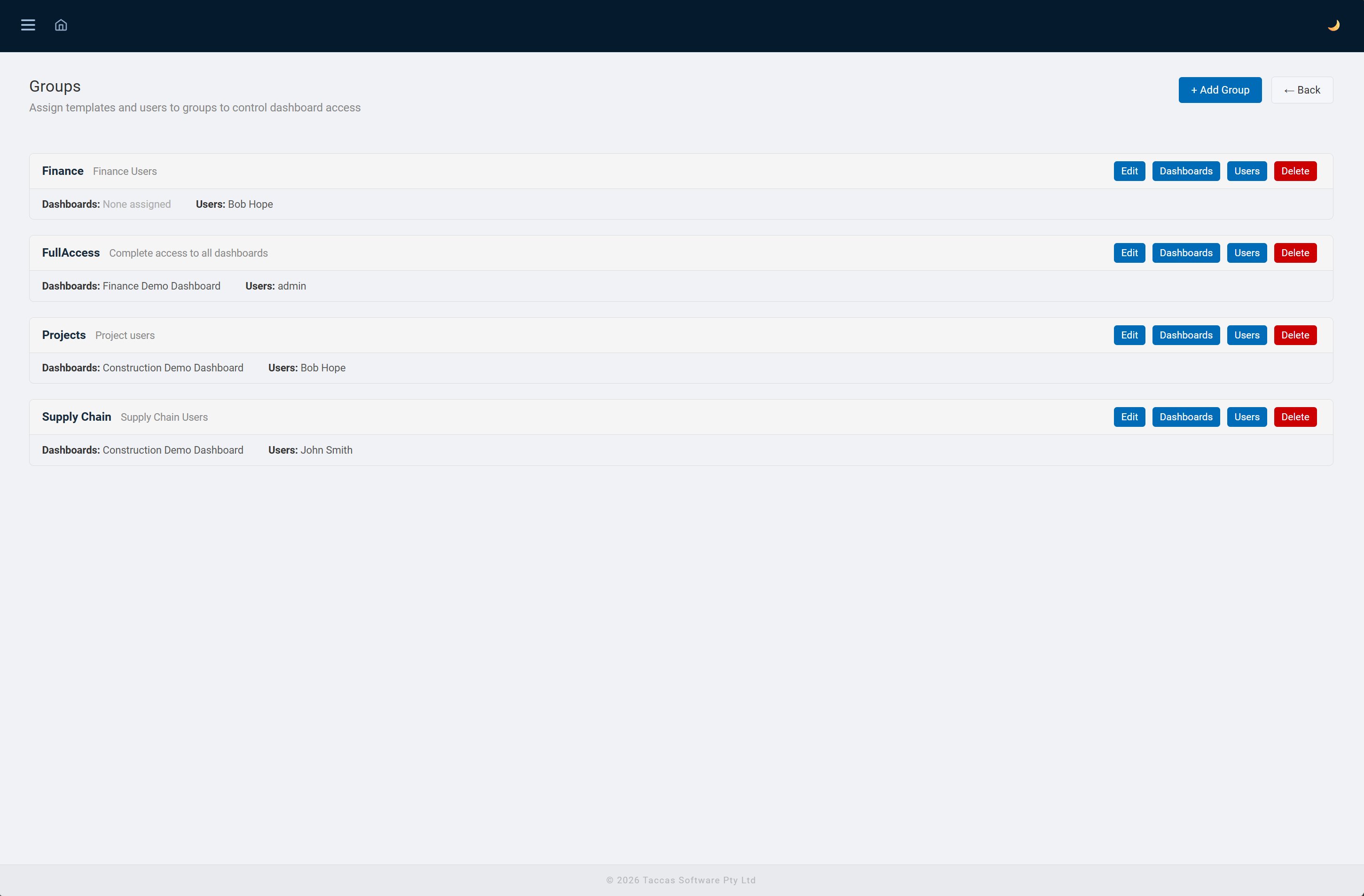
- Group visibility — control which user groups can see each dataset's dashboard
Available to Power Users
and Administrators.
Data Loads is a Power User feature. Power Users can create datasets, download templates, and upload workbooks. Administrators have full oversight — they review the schema before activation and can manage all datasets across all users.
Power Users
Can create new datasets, download the pre-stamped template, fill it in, and upload the completed workbook. The dataset becomes available as a dashboard data source once an administrator activates it. Power Users can re-upload updated data at any time.
Administrators
Have full access to all datasets across all users. Administrators review the inferred column structure before activating a load, configure group visibility, and can delete datasets. The Data Loads tile appears on the Admin Dashboard for easy access.
Interested in Data Loads?
Contact Taccas Software to find out how the Data Loads feature can work for your team and your data.
Contact Taccas