Administration

Configured by admins.
Built for users.

Everything in VisualDashboard is configured through a browser-based admin interface — no code, no SQL, no deployment. Connect a data source, define your hierarchy, configure fields and rules. Changes take effect immediately for all users.

Admin Dashboard

Everything in one place.

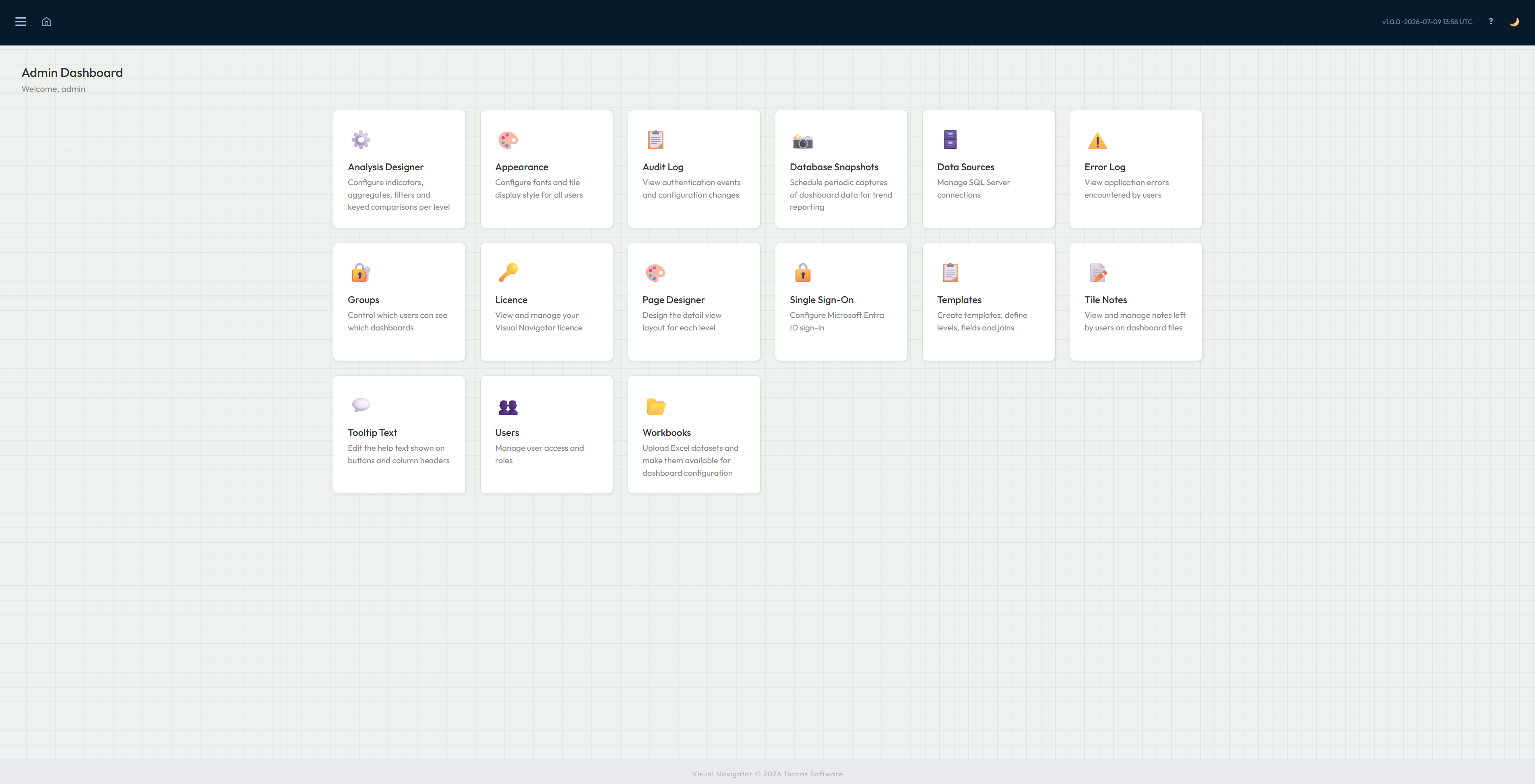
The Admin Dashboard is the starting point for all configuration. Each card links to a specific area — data sources, templates, analysis designer, users, groups, and more. Administrators see only what they need.

  • Data Sources — manage SQL Server connections
  • Templates & Levels — define your dashboard hierarchy
  • Page Designer — configure detail view layouts per level
  • Analysis Designer — set up indicators, aggregates, filters and analysis rules
  • Users — manage access and roles
  • Groups — control which users see which dashboards
  • Tile Notes — view and manage all notes across the system
  • Appearance — set organisation-wide font and progress bar style
  • Data Loads — manage Power User Excel dataset uploads
Admin dashboard showing all configuration modules as cards
Data Sources

Connect to your
SQL Server databases.

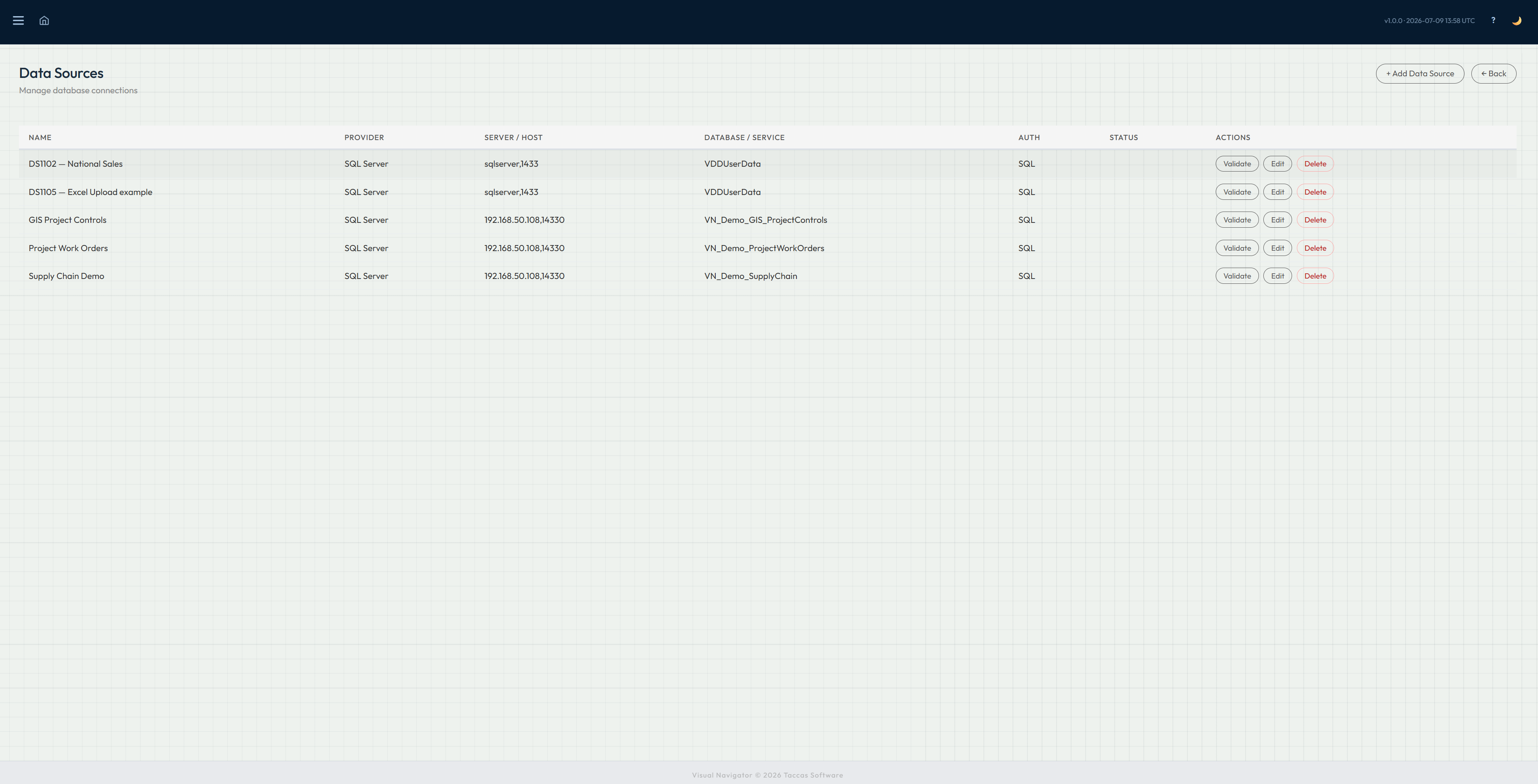
Add and manage SQL Server connections through the Data Sources page. Windows Authentication and SQL Authentication are both supported. Connection strings are AES-256 encrypted and stored securely — never in source code or config files.

  • Windows Authentication or SQL Authentication
  • Test Connection button — verify before saving
  • AES-256 encrypted credential storage
  • Multiple data sources — each template uses its own
  • User-uploaded Excel datasets appear here automatically on activation
Data sources page showing list of connections with Add Data Source modal open
Templates & Levels

Define your
data hierarchy.

A template is a configured dashboard — it defines which data source to use, how many levels the hierarchy has, and what each level looks like. The Levels page shows the complete hierarchy at a glance, with counts of configured fields, joins, and side structures per level.

  • Create multiple templates from the same or different data sources
  • Deep copy — clone a template with optional feature selection
  • Publish / unpublish — control when a template is visible to users
  • Public flag — visible to all users, or only to assigned groups
  • Each level: define table, schema, display name, fields, joins, side structures
  • Fields button — configure which fields show on tile, tooltip, and list view
Dashboard templates list showing published templates with copy and levels actions Template levels showing 5-level hierarchy from Portfolio to Task with field counts
Field Configuration

Control exactly what
users see.

For each level, administrators choose which fields appear on tiles, in the hover tooltip, and in list view — independently. Fields are imported directly from the database schema with one click, then toggled on or off per display location.

  • Import Fields from Table — auto-populates from the connected schema
  • Show on Tile — appears on the tile card
  • Show on Tooltip — appears in the hover tooltip
  • Show in List — appears as a column in list view
  • Display Name — set a user-friendly label per field
  • Tile Style — control how the field value is displayed on the tile
Portfolio fields configuration showing Show on Tile, Show on Tooltip and Show in List checkboxes per field
Detail View Layout

Configure the record
detail view.

The Page Designer lets administrators configure the detail view layout for every level across all templates. Each level can have multiple sections, and each section can have multiple fields arranged in rows with percentage-based column widths. A live layout preview updates as you configure.

  • Multiple sections per level — group fields logically
  • Fields arranged in rows with percentage width per field
  • Live preview shows exactly how the layout will look
  • Reorder sections and fields with up/down controls
  • Fields can be sourced from the current level or any parent level
Page Designer showing all templates with level counts and Design Layout buttons Portfolio detail layout editor with live preview showing field column widths
Analysis Designer

Indicators, aggregates,
filters & analysis rules.

The Analysis Designer is where administrators configure everything that drives the intelligent behaviour of the dashboard — the colour indicators, rollup aggregates, field filters, and condition-based alert rules.

Indicators

Boolean fields as
colour indicators.

Any boolean field in your database can become a colour-coded indicator bar on the left edge of each tile. Administrators configure which fields, what colour, and the priority order. Up to four indicators appear as proportional segments on the tile edge.

  • Any bit/boolean field can be an indicator
  • Colour configured per indicator — any hex colour
  • Priority order controls which indicator appears first
  • Preview swatch shown in admin for each indicator
  • Report Fields — choose context columns for the Indicator Status report
Task indicators configuration showing Critical Path and Investigation Required with colour swatches
Aggregates

Roll child values
up to parent tiles.

Aggregates calculate SUM or AVG values from child records and display them on parent tiles. A single aggregate can be set as the progress fill — driving the glass-of-water visual effect on tiles. Aggregate values are also available for use in analysis checks.

  • SUM or AVG of any numeric child field
  • Show as Fill — drives the progress fill visual on tiles
  • Fill colour configured per aggregate
  • Show on Tile — numeric value in tile footer
  • Show on Tooltip — value shown in hover tooltip
  • Available as Field B in analysis checks (child aggregate check type)
Work Package aggregates configuration showing PercentComplete as Average with Show as Fill enabled
Analysis Rules

Condition-based alerts,
configured in clicks.

Analysis rules define the conditions that trigger alert dots on tiles. Each rule can have multiple checks — alert if any fail or only if all fail. The Edit Analysis page gives full control over what to compare, what condition triggers the alert, and how it appears on the dashboard and in reports.

  • Field A vs another field on the same record
  • Field A vs a fixed value typed by the administrator
  • Field A vs today's date — for date-based alerts
  • Field A vs a child aggregate — e.g. contract value vs total PO spend
  • Optional threshold % — alert at 80% of a value, not just 100%
  • Alert colour, warning dot, clear dot — independently configurable
  • Report Fields — choose context columns for the Alert Summary report
Real example: contract spend monitoring

A contract is worth $1.2 million. VisualDashboard sums all PO line values against it. At 80% spend an amber warning appears. At 100% it turns red. Configured in a few clicks — no SQL, no code, no schema changes.

Analysis Designer showing template and level grid with Indicators, Aggregates, Filters and Analysis buttons Edit Analysis page showing field comparison setup, alert colour, warning dot toggles and report fields
Users & Groups

Access control
for every person.

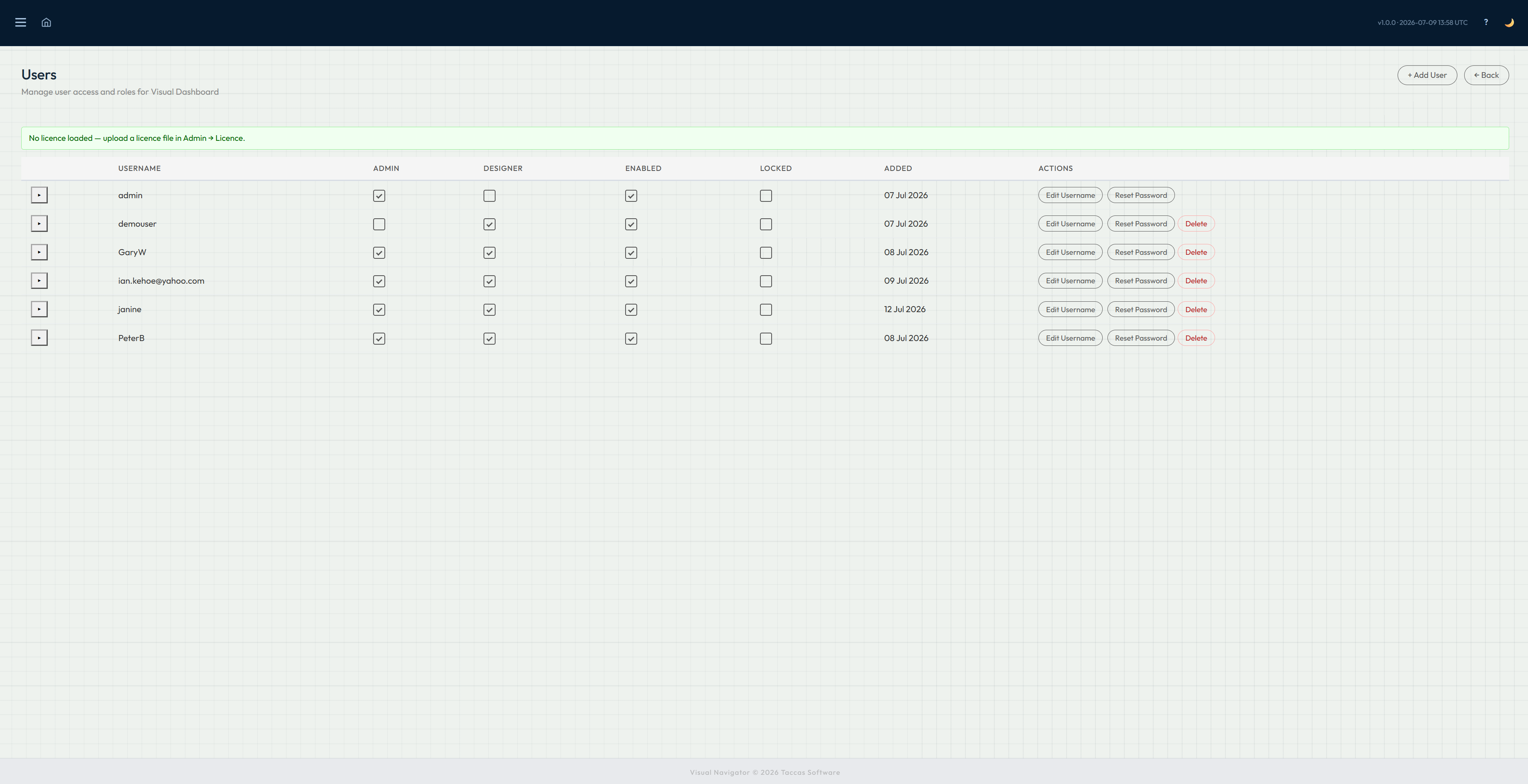
Administrators manage users and groups through simple list interfaces. Roles are set with inline checkboxes. Groups control which templates each user can see.

Users

Users page showing Admin and Power User role checkboxes, Locked column and expandable rows

Manage user accounts with inline role checkboxes. The Admin and Power User columns are toggled directly in the list. Locked accounts are flagged and can be unlocked by an administrator. Expand any row to see which groups the user belongs to.

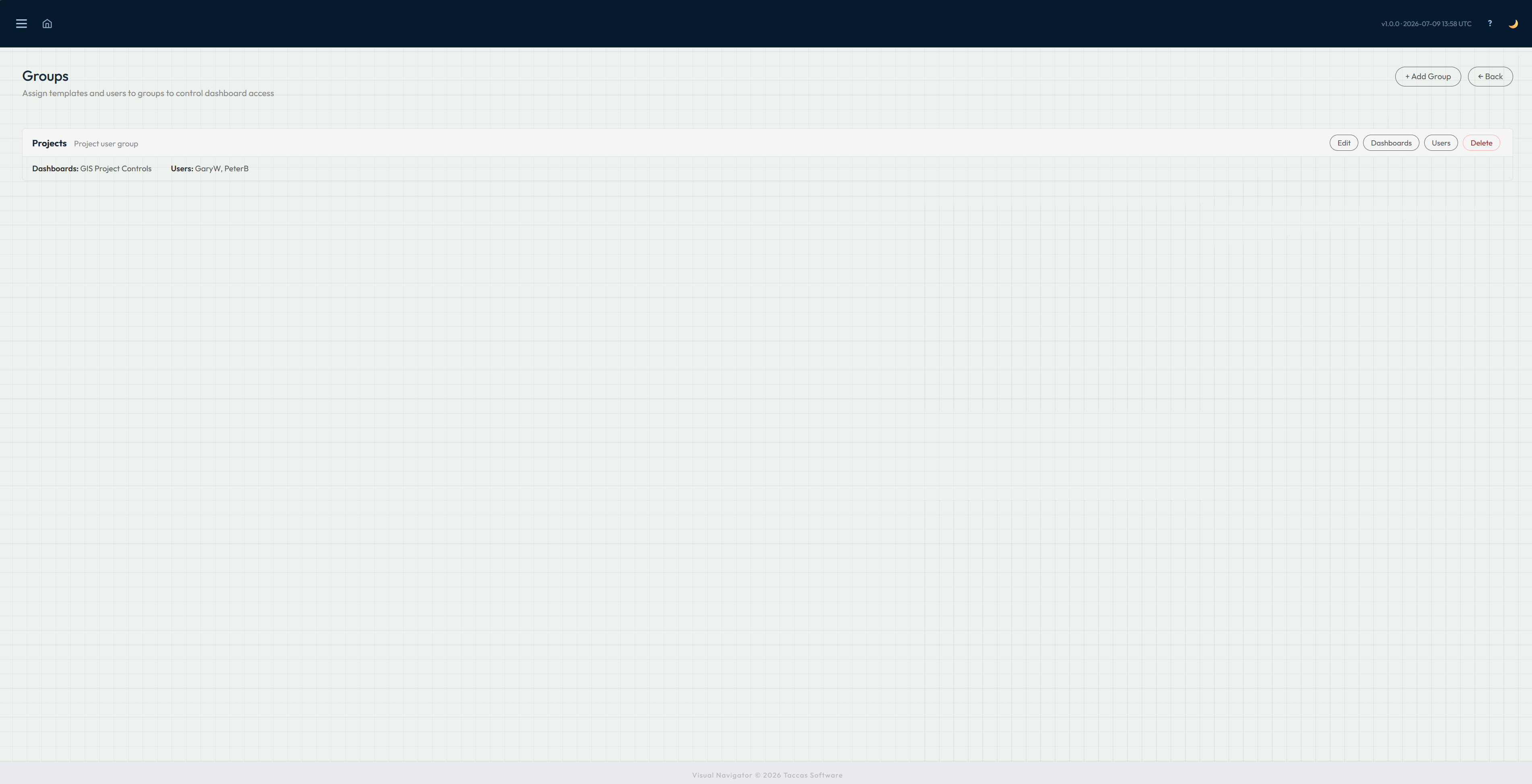
Groups

Groups page showing Finance, FullAccess, Projects and Supply Chain groups with assigned dashboards and users

Groups link users to templates. A user in a group sees the templates assigned to that group. Administrators can assign multiple templates and multiple users to each group. The groups list shows current assignments inline.

Appearance

Organisation-wide
visual settings.

The Appearance page lets administrators configure the font and progress bar display style for all users across the organisation. A live preview updates as settings are changed before saving.

  • Body font — choose from available font options with live preview
  • Monospace font — used for code-like values throughout the interface
  • Tile progress display — Glass fill, Horizontal bar, or Both
  • Changes apply organisation-wide on save
Appearance settings showing font pickers with live preview and progress bar style radio buttons
Get in touch

Ready to configure your dashboard?

Contact Taccas Software to discuss how VisualDashboard can be configured for your data and your organisation.

Contact Taccas