Navi Designer

Shape the view around the work.

The people who understand the work can decide how it is organised and what everyone sees. No coding is needed.

Start with the way the work is arranged.

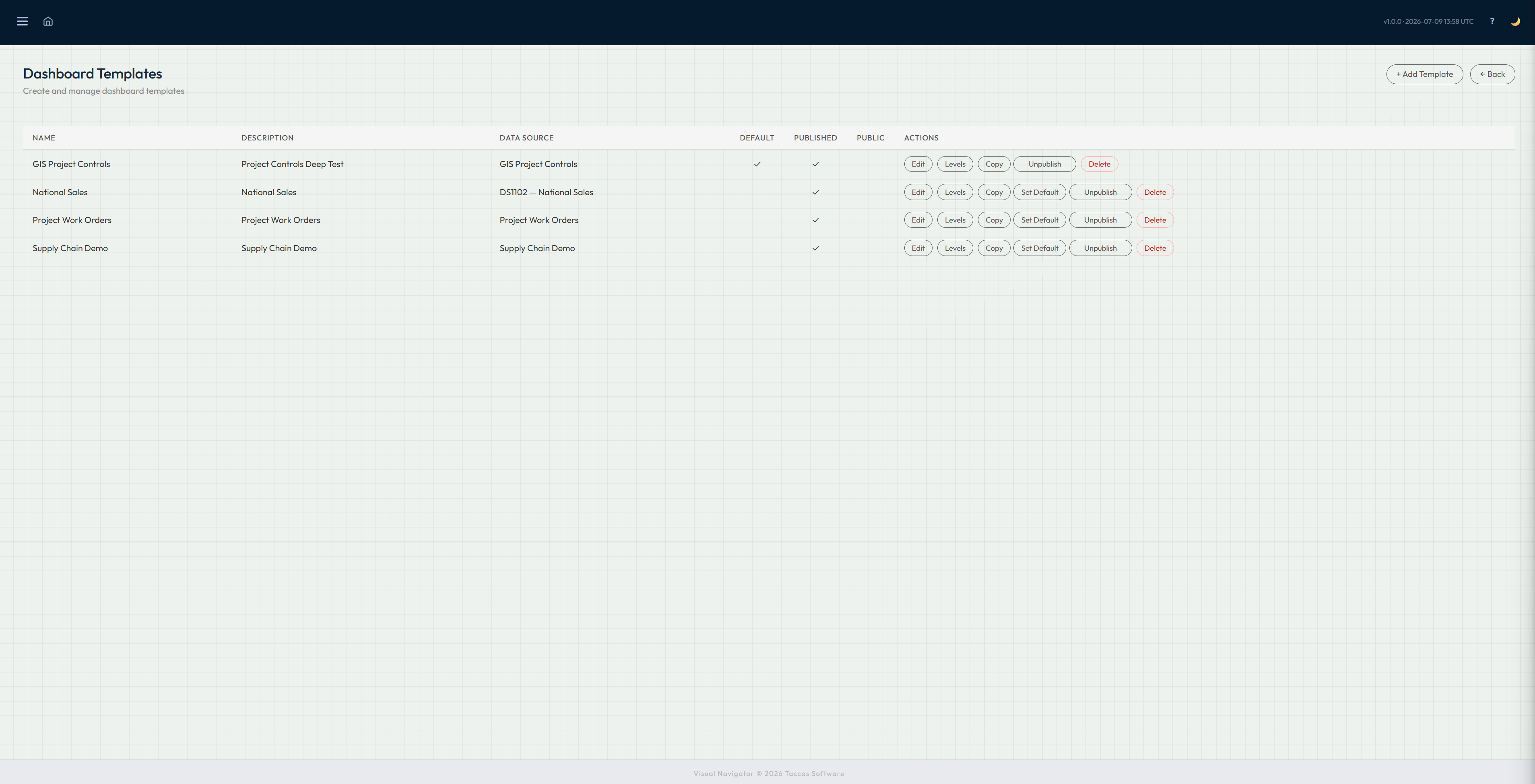
Create the main dashboard, then add the stages people move through. These could be portfolios, programmes, projects and activities, or completely different stages that suit your business.

Choose what belongs at each stage and bring related information together. You can also provide another route into the work when people need to approach it from a different direction.

  • Name each stage
  • Choose what people see
  • Bring related information together
  • Add another route where it helps
Navi screen for arranging a dashboard

Expand image

Choose what appears, and where.

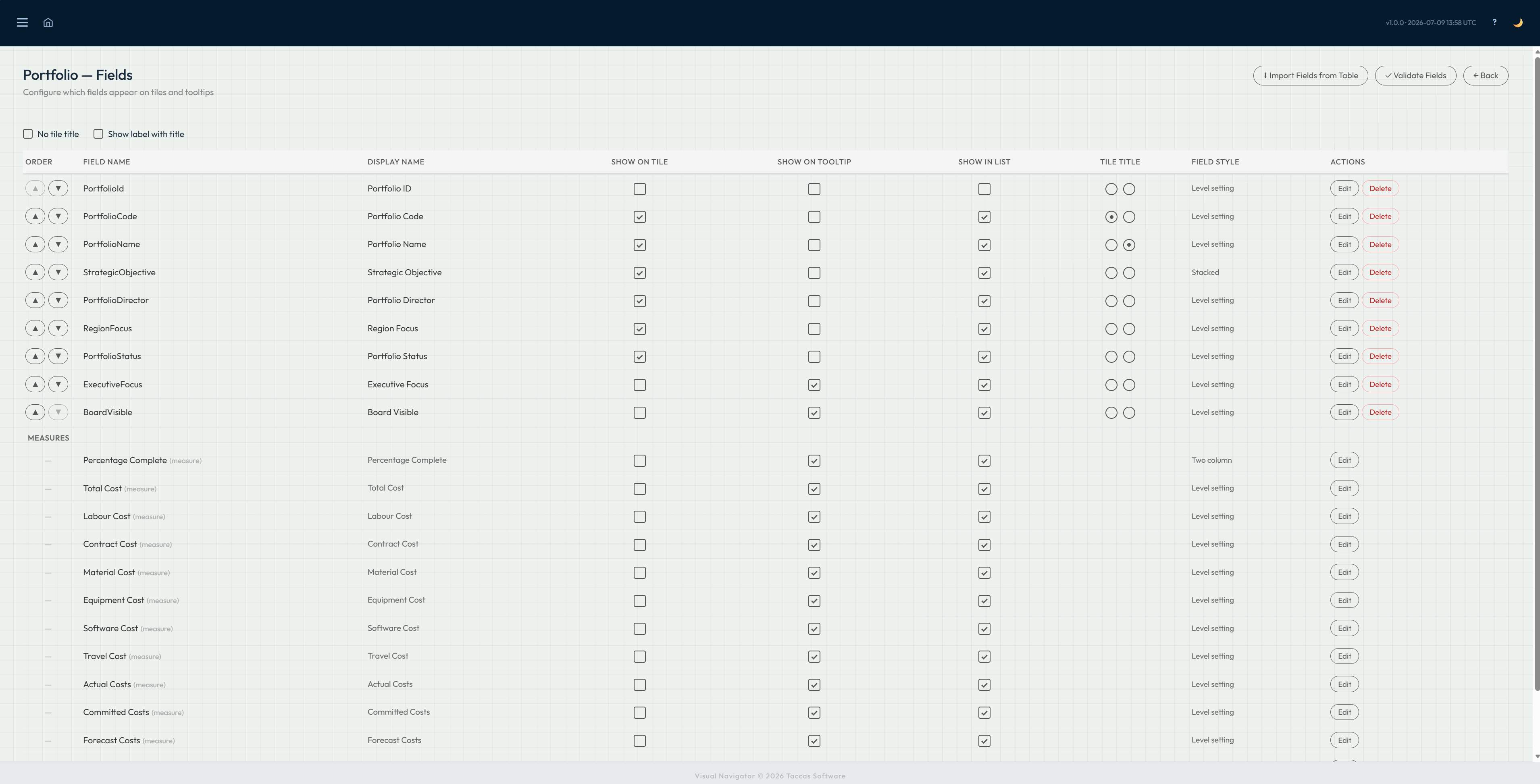
Decide which information appears on tiles, in lists and in the small panel shown when someone pauses over a tile. Something can be available in one view without taking up space everywhere.

Arrange headings, values and sections on the full record page. This gives people a clear view of the work without changing the Excel workbook or business database behind it.

Navi screen for choosing what appears on the dashboard

Expand image

Detail page builder

Arrange the full record page.

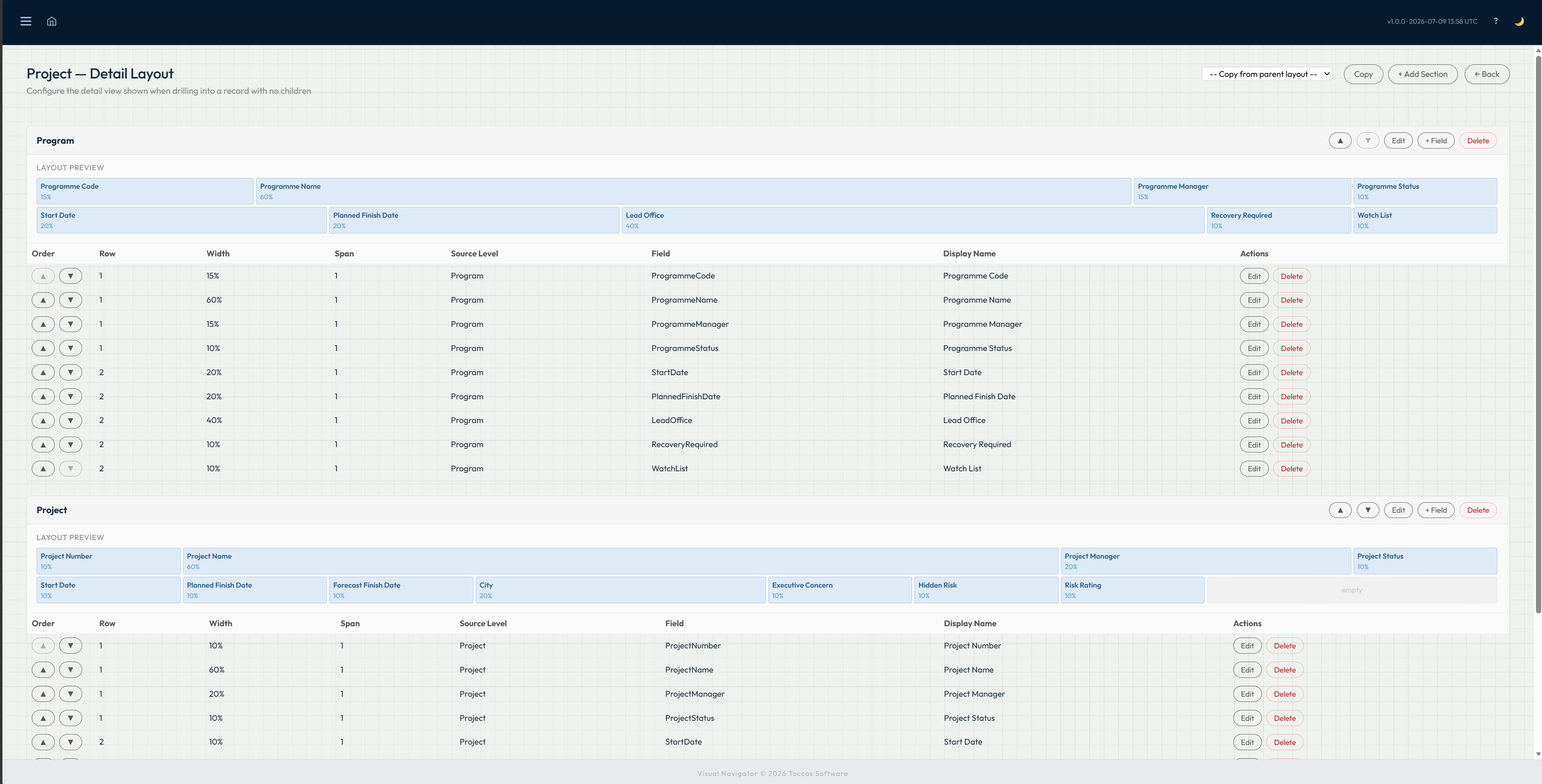
Choose the sections that appear when someone opens a record, then decide which information belongs in each section. Fields can come from the current record or from a connected stage above it.

The preview shows the width and position of every field. Move fields between rows, change the amount of space they use, rename their headings and copy a useful layout from another stage instead of rebuilding it.

Navi detail page builder showing sections, field positions and a live layout preview

Finished detail page

Give people the complete record when they need it.

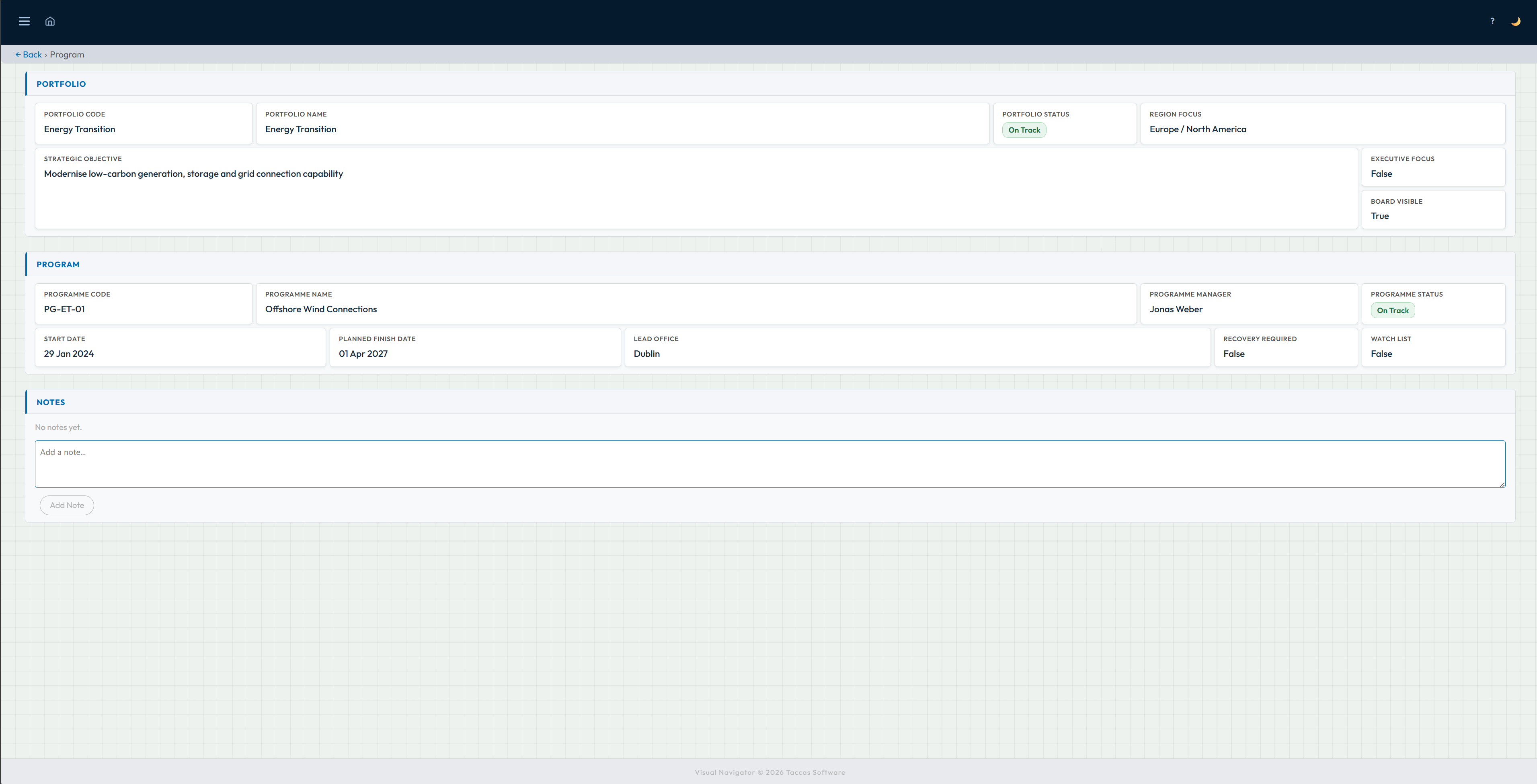
The finished page follows the layout created in the builder. It can show information from the selected record alongside useful information from the stages above it, with clear headings and the most important values placed first.

A notes area lets people record context against the item without changing the source workbook or database. The screenshot shows the empty state before the first note has been added.

Finished Navi detail page showing portfolio and programme information arranged in sections with an empty Notes area

Put your structure to work.

Try Navi with your own Excel or database data.

Download trial